ACME Automation Workflow
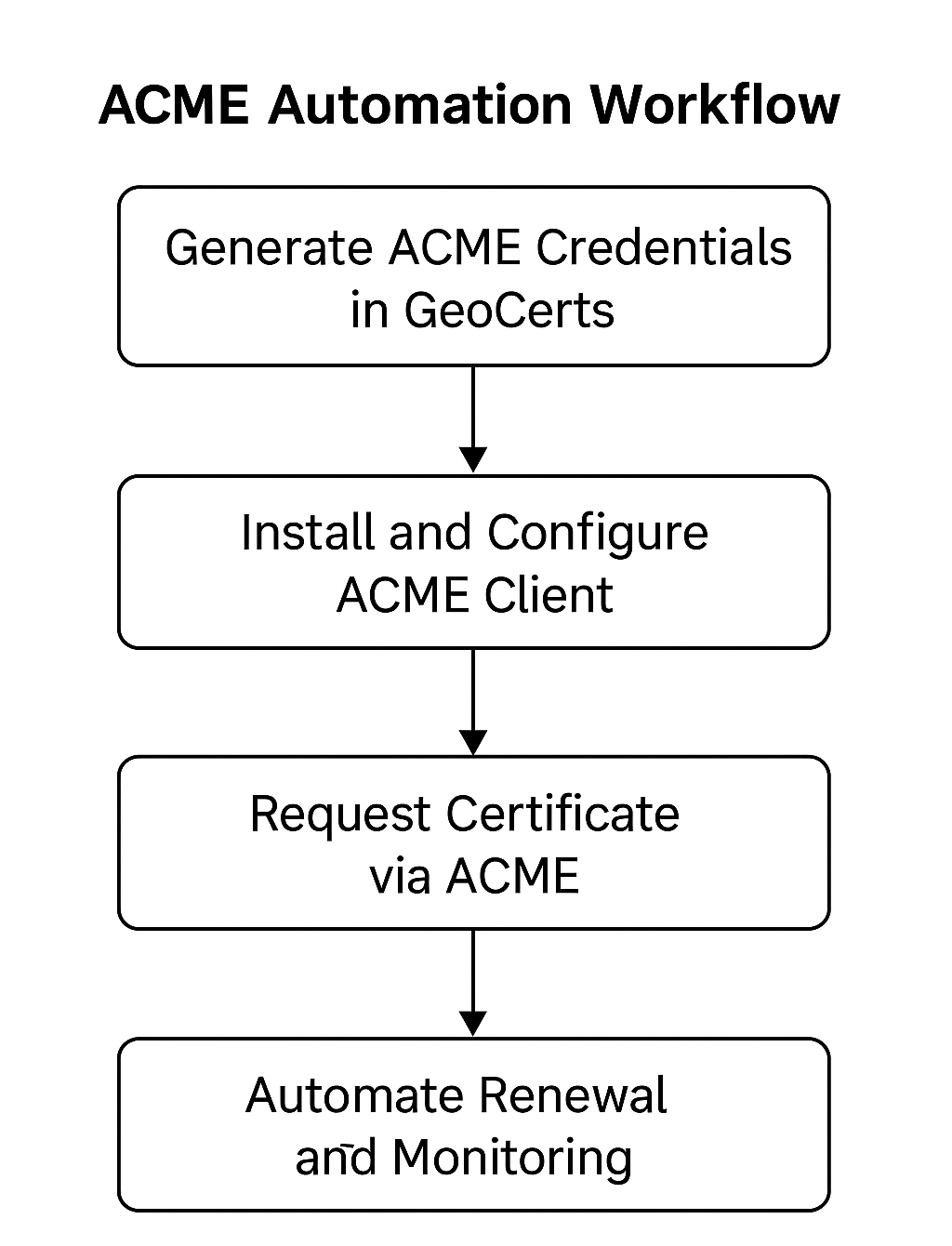
ACME (Automated Certificate Management Environment) enables automatic issuance, renewal, and management of SSL/TLS certificates. This high-level overview outlines the three main steps to automate certificates using ACME with GeoCerts.
Step 1: Create ACME Directory URL
Start by creating ACME credentials from your GeoCerts account. These include the ACME Directory URL and External Account Binding (EAB) credentials.
Learn how to create an ACME Directory URL »
Step 2: Install and Configure an ACME Client
Install and configure a third-party ACME client such as Certbot or win-acme. You’ll use your credentials to link the client to GeoCerts’ ACME service.
Learn how to configure an ACME client »
Step 3: Request and Manage Certificates
Once setup is complete, the ACME client can request certificates, validate domains, and install certificates automatically.
Learn how to request and manage certificates »
Summary Workflow Diagram
Next Steps
Ready to start automating your certificates? Follow these steps in order:
- Create an ACME Directory URL - Generate your automation credentials
- Configure an ACME Client - Set up your preferred automation tool
- Request and Manage ACME Certificates - Start automating certificate lifecycle